
 English
  French
  Spanish
  Chinese
  Japanese
  Korean
  Hindi
Hindi  German
  Norwegian



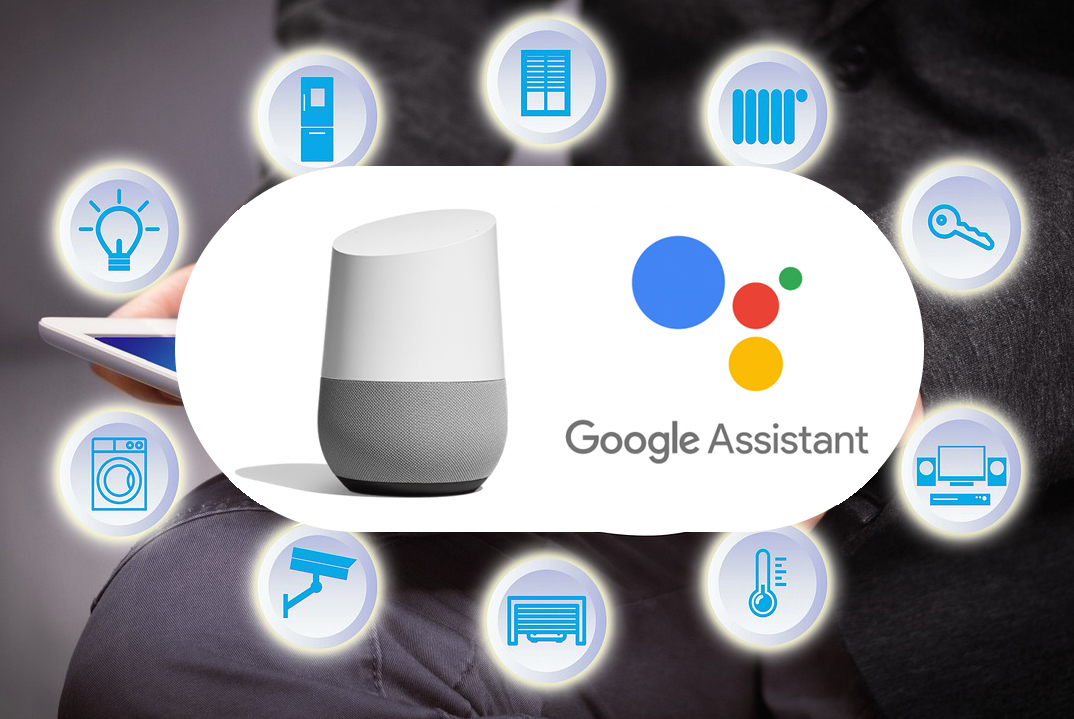
Google Home Smart Home Installation Guide: Shutters, Lights, Cameras and More
Smart home technology offers many possibilities to make our daily life more comfortable, practical and secure. With the advent of voice assistants like Google Home, it has become even easier to control and automate various devices in our home. In this article, we will explain how to install and configure a smart home with Google Home as the hub, including roller shutters, lights, televisions, security cameras, and more. We will also show you how to link different applications, such as Smartlife, to control your devices through the Google Home interface.
Choosing smart home devices:
Before installing your smart home with Google Home, it is important to choose compatible devices. For roller shutters, make sure they are equipped with a built-in home automation module or can be controlled remotely via a connected motor. For lights, opt for connected bulbs or lighting fixtures compatible with Google Home. For televisions, check that they are equipped with a voice command function or can be connected to a control box such as a Chromecast. For security cameras, choose models compatible with Google Home that have remote monitoring features.
Installing smart home devices:
Once you have chosen your smart home devices compatible with Google Home, you can begin the installation. For roller shutters, follow the manufacturer's instructions to connect them to your Wi-Fi network and your Google Home account. For lights, install the bulbs or fixtures in the rooms of your choice and configure them in the Google Home app. For televisions, connect them to your Wi-Fi network and make sure they are linked to your Google Home account. For security cameras, follow the manufacturer's instructions to connect them to your Wi-Fi network and integrate them into your Google Home account.
Configuring Google Home:
Once your smart home devices are installed, you can configure them in the Google Home app. Open the app and follow the instructions to add your devices to your connected home. Make sure to name them correctly so you can easily identify them in the Google Home interface. You can also create room groups and assign your devices to these groups to control them simultaneously. For example, you can create a "Living Room" group with your lights, television and roller shutters, and a "Bedroom" group with your lights and roller shutters.
Linking applications with Google Home:
To control your smart home devices through the Google Home interface, you can link different applications such as Smartlife. To do so, open the Google Home app and go to the "Settings" menu. Select "Link account" and search for the app you want to link, in this case Smartlife. Follow the instructions to authorize the connection between Google Home and Smartlife. Once the two apps are linked, you will be able to control your Smartlife devices directly from the Google Home interface.
Using Google Home to control your smart home devices:
Once everything is configured, you can start using Google Home to control your smart home devices. You can use voice commands to turn the lights on or off, open or close roller shutters, change the channel on your television, or even check live security camera feeds. For example, you can say "Ok Google, turn on the living room lights at 50%" to adjust the brightness, or "Ok Google, close the bedroom shutters" to close them instantly. You can also use the Google Home app on your smartphone to control your devices remotely, even when you are away from home.
Automating tasks with Google Home:
One of the major advantages of a smart home with Google Home is the ability to automate certain tasks to make your home smarter and more efficient. For example, you can create routines in the Google Home app to automate a set of actions based on a given scenario. You can create a morning routine that turns on the kitchen lights, opens the living room roller shutters and plays your favourite music when you say "Hey Google, good morning" to Google Home. You can also create security routines to turn on the lights and activate security cameras when you say "Ok Google, it's time to sleep" before going to bed.
Smart home with Google Home as the hub offers a practical and intelligent way to control and automate your home devices such as roller shutters, lights, televisions, security cameras, and more. By following the installation and configuration steps, as well as linking compatible applications like Smartlife, you can create a personalised and efficient connected home. With voice commands and automation routines, you can simplify your daily life and enjoy an increased level of comfort and security in your home. So, do not hesitate to embark on the smart home adventure with Google Home!



Google Home Smart Home Installation Guide: Shutters, Lights, Cameras and More
Smart home technology offers many possibilities to make our daily life more comfortable, practical and secure. With the advent of voice assistants like Google Home, it has become even easier to control and automate various devices in our home. In this article, we will explain how to install and configure a smart home with Google Home as the hub, including roller shutters, lights, televisions, security cameras, and more. We will also show you how to link different applications, such as Smartlife, to control your devices through the Google Home interface.
Choosing smart home devices:
Before installing your smart home with Google Home, it is important to choose compatible devices. For roller shutters, make sure they are equipped with a built-in home automation module or can be controlled remotely via a connected motor. For lights, opt for connected bulbs or lighting fixtures compatible with Google Home. For televisions, check that they are equipped with a voice command function or can be connected to a control box such as a Chromecast. For security cameras, choose models compatible with Google Home that have remote monitoring features.
Installing smart home devices:
Once you have chosen your smart home devices compatible with Google Home, you can begin the installation. For roller shutters, follow the manufacturer's instructions to connect them to your Wi-Fi network and your Google Home account. For lights, install the bulbs or fixtures in the rooms of your choice and configure them in the Google Home app. For televisions, connect them to your Wi-Fi network and make sure they are linked to your Google Home account. For security cameras, follow the manufacturer's instructions to connect them to your Wi-Fi network and integrate them into your Google Home account.
Configuring Google Home:
Once your smart home devices are installed, you can configure them in the Google Home app. Open the app and follow the instructions to add your devices to your connected home. Make sure to name them correctly so you can easily identify them in the Google Home interface. You can also create room groups and assign your devices to these groups to control them simultaneously. For example, you can create a "Living Room" group with your lights, television and roller shutters, and a "Bedroom" group with your lights and roller shutters.
Linking applications with Google Home:
To control your smart home devices through the Google Home interface, you can link different applications such as Smartlife. To do so, open the Google Home app and go to the "Settings" menu. Select "Link account" and search for the app you want to link, in this case Smartlife. Follow the instructions to authorize the connection between Google Home and Smartlife. Once the two apps are linked, you will be able to control your Smartlife devices directly from the Google Home interface.
Using Google Home to control your smart home devices:
Once everything is configured, you can start using Google Home to control your smart home devices. You can use voice commands to turn the lights on or off, open or close roller shutters, change the channel on your television, or even check live security camera feeds. For example, you can say "Ok Google, turn on the living room lights at 50%" to adjust the brightness, or "Ok Google, close the bedroom shutters" to close them instantly. You can also use the Google Home app on your smartphone to control your devices remotely, even when you are away from home.
Automating tasks with Google Home:
One of the major advantages of a smart home with Google Home is the ability to automate certain tasks to make your home smarter and more efficient. For example, you can create routines in the Google Home app to automate a set of actions based on a given scenario. You can create a morning routine that turns on the kitchen lights, opens the living room roller shutters and plays your favourite music when you say "Hey Google, good morning" to Google Home. You can also create security routines to turn on the lights and activate security cameras when you say "Ok Google, it's time to sleep" before going to bed.
Smart home with Google Home as the hub offers a practical and intelligent way to control and automate your home devices such as roller shutters, lights, televisions, security cameras, and more. By following the installation and configuration steps, as well as linking compatible applications like Smartlife, you can create a personalised and efficient connected home. With voice commands and automation routines, you can simplify your daily life and enjoy an increased level of comfort and security in your home. So, do not hesitate to embark on the smart home adventure with Google Home!
Google Home Smart Home Installation Guide: Shutters, Lights, Cameras and More
Smart home technology offers many possibilities to make our daily life more comfortable, practical and secure. With the advent of voice assistants like Google Home, it has become even easier to control and automate various devices in our home. In this article, we will explain how to install and configure a smart home with Google Home as the hub, including roller shutters, lights, televisions, security cameras, and more. We will also show you how to link different applications, such as Smartlife, to control your devices through the Google Home interface.
Choosing smart home devices:
Before installing your smart home with Google Home, it is important to choose compatible devices. For roller shutters, make sure they are equipped with a built-in home automation module or can be controlled remotely via a connected motor. For lights, opt for connected bulbs or lighting fixtures compatible with Google Home. For televisions, check that they are equipped with a voice command function or can be connected to a control box such as a Chromecast. For security cameras, choose models compatible with Google Home that have remote monitoring features.
Installing smart home devices:
Once you have chosen your smart home devices compatible with Google Home, you can begin the installation. For roller shutters, follow the manufacturer's instructions to connect them to your Wi-Fi network and your Google Home account. For lights, install the bulbs or fixtures in the rooms of your choice and configure them in the Google Home app. For televisions, connect them to your Wi-Fi network and make sure they are linked to your Google Home account. For security cameras, follow the manufacturer's instructions to connect them to your Wi-Fi network and integrate them into your Google Home account.
Configuring Google Home:
Once your smart home devices are installed, you can configure them in the Google Home app. Open the app and follow the instructions to add your devices to your connected home. Make sure to name them correctly so you can easily identify them in the Google Home interface. You can also create room groups and assign your devices to these groups to control them simultaneously. For example, you can create a "Living Room" group with your lights, television and roller shutters, and a "Bedroom" group with your lights and roller shutters.
Linking applications with Google Home:
To control your smart home devices through the Google Home interface, you can link different applications such as Smartlife. To do so, open the Google Home app and go to the "Settings" menu. Select "Link account" and search for the app you want to link, in this case Smartlife. Follow the instructions to authorize the connection between Google Home and Smartlife. Once the two apps are linked, you will be able to control your Smartlife devices directly from the Google Home interface.
Using Google Home to control your smart home devices:
Once everything is configured, you can start using Google Home to control your smart home devices. You can use voice commands to turn the lights on or off, open or close roller shutters, change the channel on your television, or even check live security camera feeds. For example, you can say "Ok Google, turn on the living room lights at 50%" to adjust the brightness, or "Ok Google, close the bedroom shutters" to close them instantly. You can also use the Google Home app on your smartphone to control your devices remotely, even when you are away from home.
Automating tasks with Google Home:
One of the major advantages of a smart home with Google Home is the ability to automate certain tasks to make your home smarter and more efficient. For example, you can create routines in the Google Home app to automate a set of actions based on a given scenario. You can create a morning routine that turns on the kitchen lights, opens the living room roller shutters and plays your favourite music when you say "Hey Google, good morning" to Google Home. You can also create security routines to turn on the lights and activate security cameras when you say "Ok Google, it's time to sleep" before going to bed.
Smart home with Google Home as the hub offers a practical and intelligent way to control and automate your home devices such as roller shutters, lights, televisions, security cameras, and more. By following the installation and configuration steps, as well as linking compatible applications like Smartlife, you can create a personalised and efficient connected home. With voice commands and automation routines, you can simplify your daily life and enjoy an increased level of comfort and security in your home. So, do not hesitate to embark on the smart home adventure with Google Home!