
 German
  French
  English
  Spanish
  Chinese
  Japanese
  Korean
  Hindi
Hindi  Norwegian



How to Reconcile Your Google Mesh Wi-Fi with Your Local LAN Network
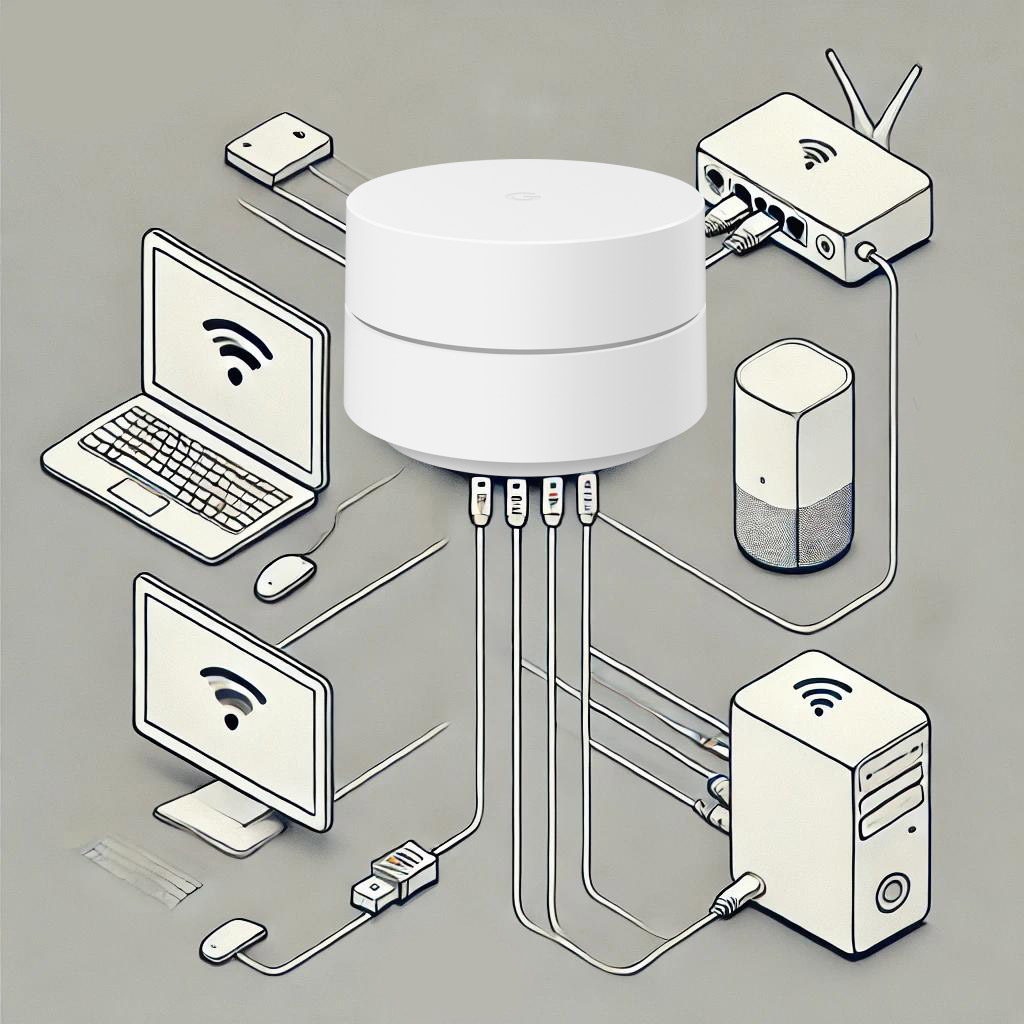
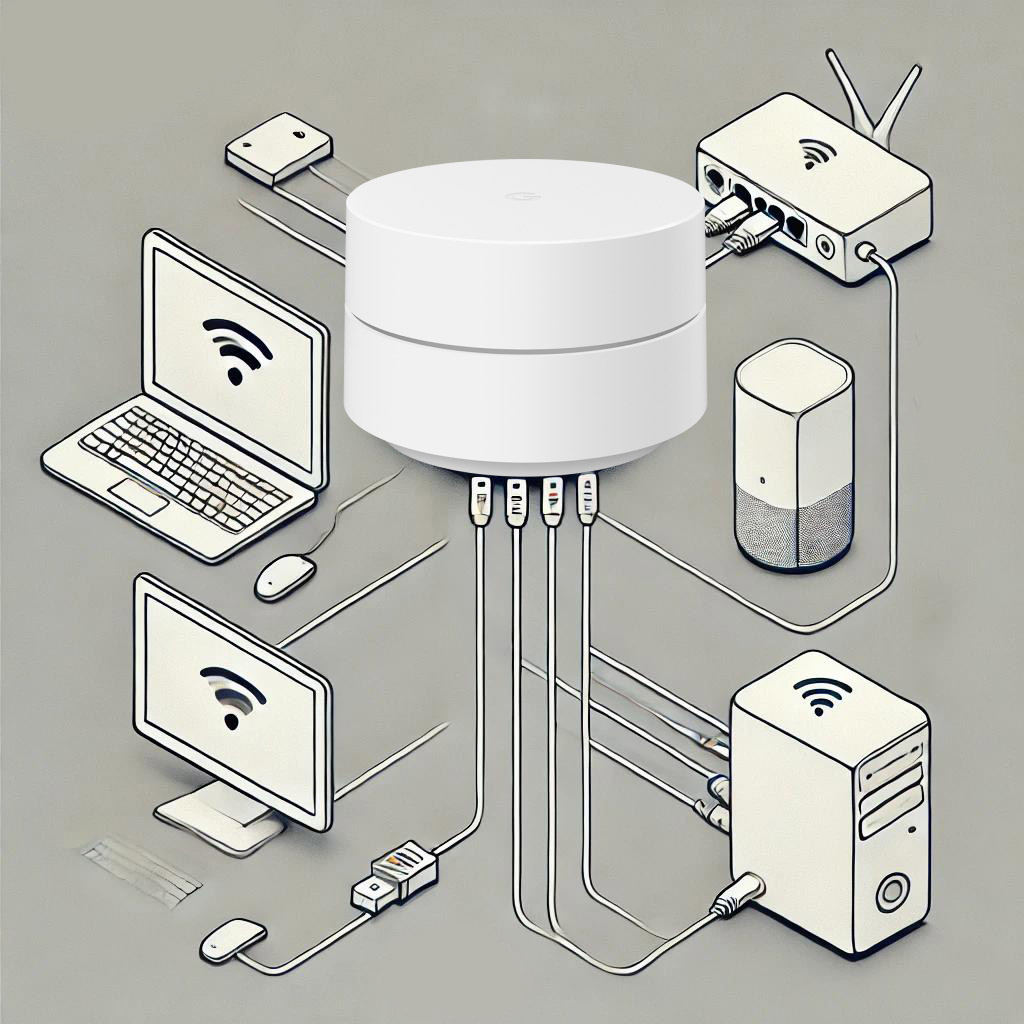
Coexistence between a Google mesh Wi-Fi network (Google Nest Wi-Fi) and a traditional local LAN network can quickly become a headache. These two types of networks often operate on separate IP ranges, making direct communication difficult between Wi-Fi-connected devices and those on the LAN. By default, Google Wi-Fi creates a separate IP address range for Wi-Fi (for example, 192.168.87.xx) compared to the local LAN (usually 192.168.1.xx).
If you try to force both networks to use the same IP range, the Google Wi-Fi system automatically reorganizes to avoid IP address conflicts, switching to a new range (for example, 192.168.86.xx or 192.168.88.xx). This further complicates the integration of the two networks.
Goal: Making the LAN and Wi-Fi Networks Communicate
Despite these limitations, it is possible to get devices from both networks to interact. For example, you might want to use your computer connected to the LAN to cast content to a Google Home or Chromecast connected to the Wi-Fi network.
Here are the steps I followed to achieve this.
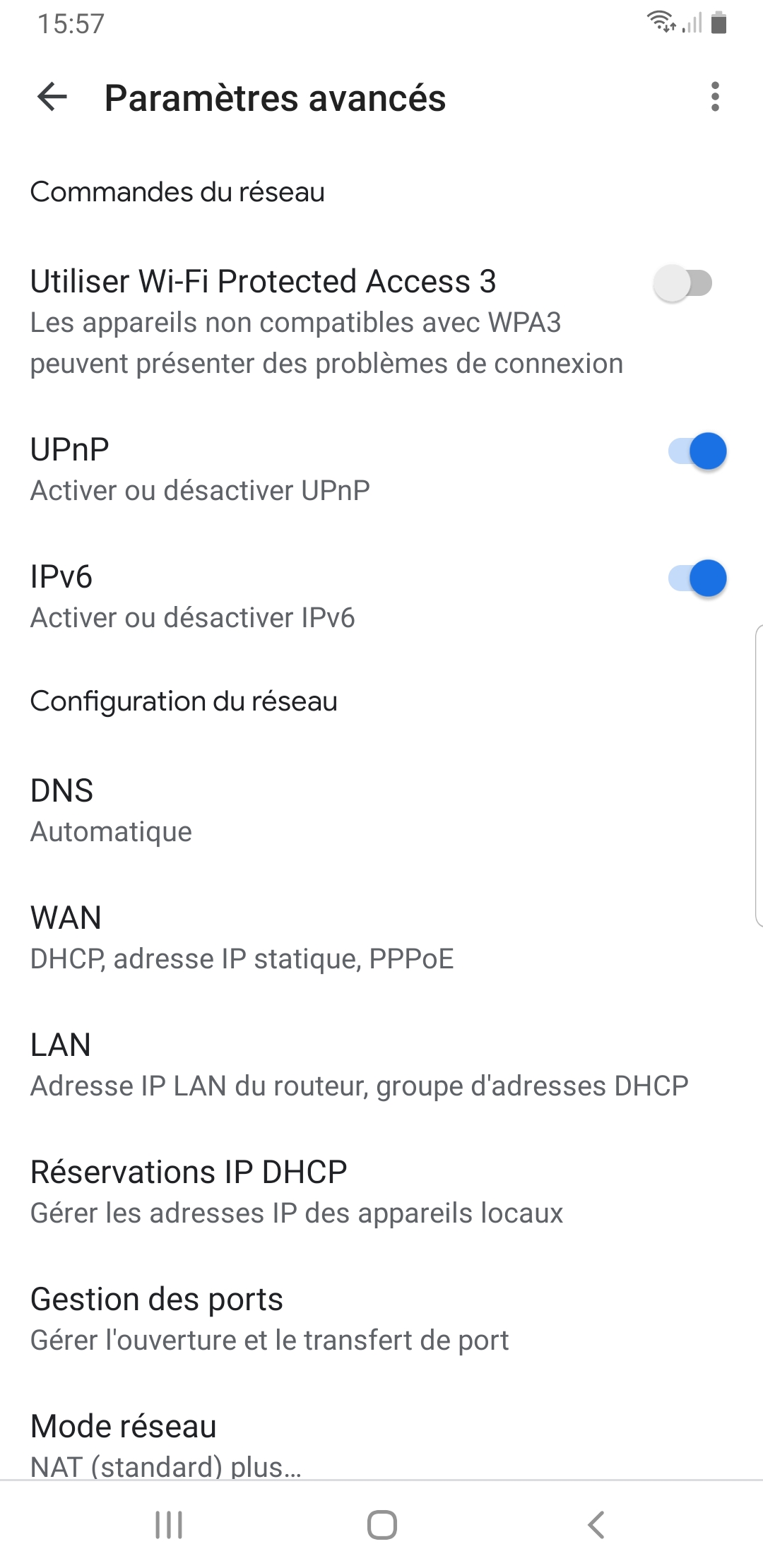
Step 1: Enable UPnP on the Google Wi-Fi Network
UPnP (Universal Plug and Play) facilitates discovery and communication between devices connected on different networks. Make sure this feature is enabled in your Google Wi-Fi settings.
- Open the Google Home app.
- Go to Wi-Fi network settings.
- Enable the UPnP option.
Step 2: Connect the Main Google Wi-Fi Unit to the LAN
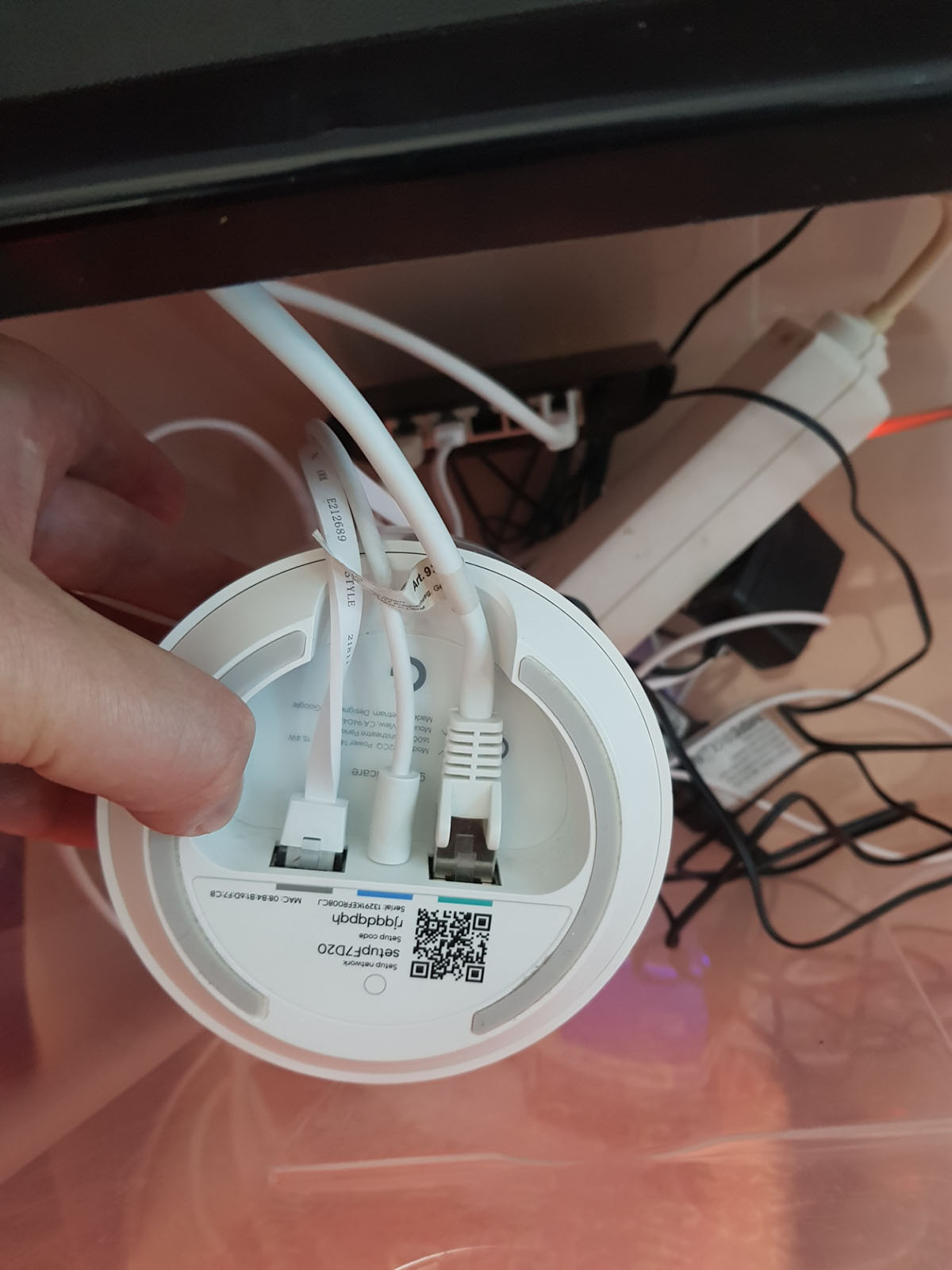
To physically link the two networks, you need to connect two Ethernet cables to your main Google Wi-Fi unit (the one connected to your modem):
- Green port (WAN): Connect this port to your internet box to provide internet access.
- Grey port (LAN): Connect this port to your switch or directly to a device on the LAN.
This creates a physical gateway between the LAN and the Google Wi-Fi network.
Step 3: Configure Your PC to Be on Both Networks
To ensure smooth communication between the two networks, I added a USB Wi-Fi dongle to my computer so it could connect simultaneously to the Google Wi-Fi network and to the LAN via Ethernet.
- Initial setup: By default, my Wi-Fi dongle connected to the Google Wi-Fi network but used an IP address from the LAN range (192.168.1.xx). This caused problems communicating with Google devices on 192.168.87.xx.
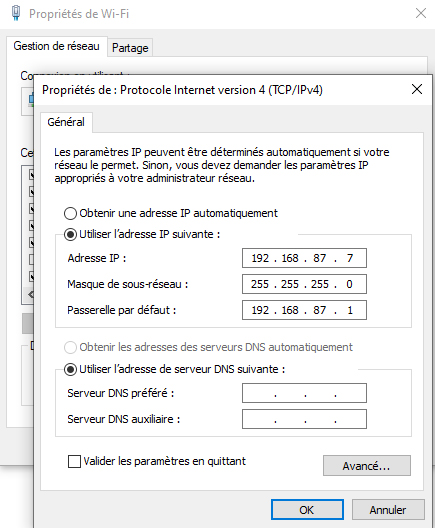
- Manual adjustment: I changed the IP configuration of my PC Wi-Fi interface to use an IP address in the 192.168.87.xx range.
Here are the steps to change this configuration on Windows:
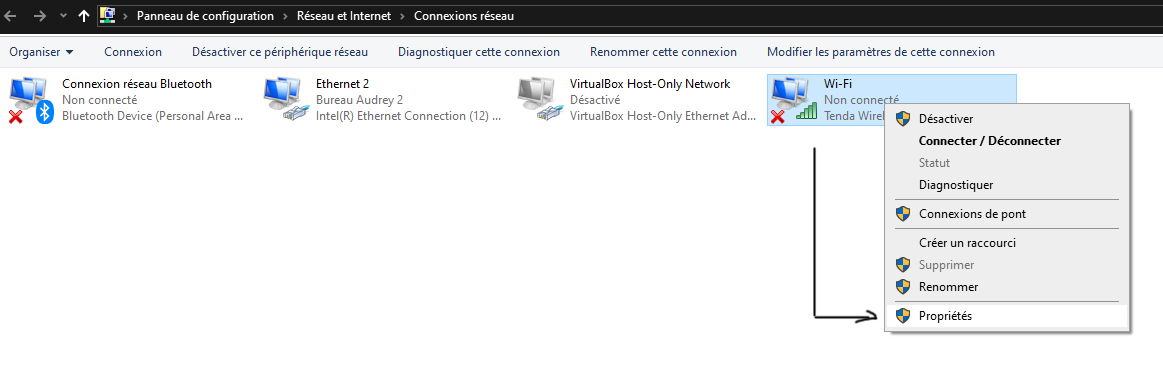
- Open Network and Sharing Center.
- Click on your Wi-Fi connection and open properties.
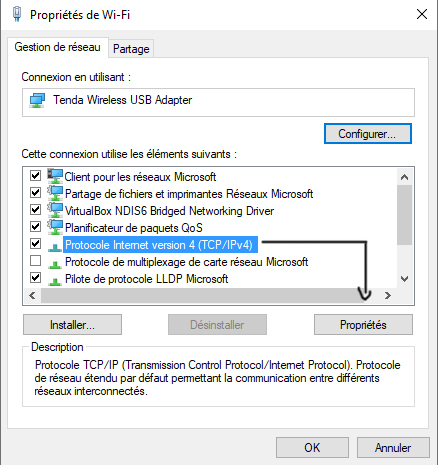
- Select Internet Protocol Version 4 (TCP/IPv4) and click Properties.
- Manually enter an IP address compatible with the Wi-Fi network (for example, 192.168.87.50) and the corresponding gateway.
Results
With these adjustments:
- Devices connected to the Google Wi-Fi network can now be accessed from my PC, even though it is also connected to the LAN.
- It is possible to cast content from my PC to Google devices such as Google Home or Chromecast.
Limitations and Alternatives
Despite this functional setup, some limitations remain:
- Some devices or services may not work well due to double NAT (Network Address Translation).
- Network performance may be slightly impacted.
For a smoother and more robust integration, you might consider disabling Google Wi-Fi routing functions (bridge mode) or using a third-party router better suited to managing a single network.
Conclusion
Although it is not possible to completely merge a Google Wi-Fi network and a LAN on a single IP range, it is entirely feasible to make them communicate with a few hardware and software adjustments. This hybrid approach offers a practical solution for connecting your Wi-Fi and LAN devices while maintaining the integrity of each network.
With these steps, you can fully enjoy the features of your Google Wi-Fi while keeping your existing LAN network.



How to Reconcile Your Google Mesh Wi-Fi with Your Local LAN Network
Coexistence between a Google mesh Wi-Fi network (Google Nest Wi-Fi) and a traditional local LAN network can quickly become a headache. These two types of networks often operate on separate IP ranges, making direct communication difficult between Wi-Fi-connected devices and those on the LAN. By default, Google Wi-Fi creates a separate IP address range for Wi-Fi (for example, 192.168.87.xx) compared to the local LAN (usually 192.168.1.xx).
If you try to force both networks to use the same IP range, the Google Wi-Fi system automatically reorganizes to avoid IP address conflicts, switching to a new range (for example, 192.168.86.xx or 192.168.88.xx). This further complicates the integration of the two networks.
Goal: Making the LAN and Wi-Fi Networks Communicate
Despite these limitations, it is possible to get devices from both networks to interact. For example, you might want to use your computer connected to the LAN to cast content to a Google Home or Chromecast connected to the Wi-Fi network.
Here are the steps I followed to achieve this.
Step 1: Enable UPnP on the Google Wi-Fi Network
UPnP (Universal Plug and Play) facilitates discovery and communication between devices connected on different networks. Make sure this feature is enabled in your Google Wi-Fi settings.
- Open the Google Home app.
- Go to Wi-Fi network settings.
- Enable the UPnP option.
Step 2: Connect the Main Google Wi-Fi Unit to the LAN
To physically link the two networks, you need to connect two Ethernet cables to your main Google Wi-Fi unit (the one connected to your modem):
- Green port (WAN): Connect this port to your internet box to provide internet access.
- Grey port (LAN): Connect this port to your switch or directly to a device on the LAN.
This creates a physical gateway between the LAN and the Google Wi-Fi network.
Step 3: Configure Your PC to Be on Both Networks
To ensure smooth communication between the two networks, I added a USB Wi-Fi dongle to my computer so it could connect simultaneously to the Google Wi-Fi network and to the LAN via Ethernet.
- Initial setup: By default, my Wi-Fi dongle connected to the Google Wi-Fi network but used an IP address from the LAN range (192.168.1.xx). This caused problems communicating with Google devices on 192.168.87.xx.
- Manual adjustment: I changed the IP configuration of my PC Wi-Fi interface to use an IP address in the 192.168.87.xx range.
Here are the steps to change this configuration on Windows:
- Open Network and Sharing Center.
- Click on your Wi-Fi connection and open properties.
- Select Internet Protocol Version 4 (TCP/IPv4) and click Properties.
- Manually enter an IP address compatible with the Wi-Fi network (for example, 192.168.87.50) and the corresponding gateway.
Results
With these adjustments:
- Devices connected to the Google Wi-Fi network can now be accessed from my PC, even though it is also connected to the LAN.
- It is possible to cast content from my PC to Google devices such as Google Home or Chromecast.
Limitations and Alternatives
Despite this functional setup, some limitations remain:
- Some devices or services may not work well due to double NAT (Network Address Translation).
- Network performance may be slightly impacted.
For a smoother and more robust integration, you might consider disabling Google Wi-Fi routing functions (bridge mode) or using a third-party router better suited to managing a single network.
Conclusion
Although it is not possible to completely merge a Google Wi-Fi network and a LAN on a single IP range, it is entirely feasible to make them communicate with a few hardware and software adjustments. This hybrid approach offers a practical solution for connecting your Wi-Fi and LAN devices while maintaining the integrity of each network.
With these steps, you can fully enjoy the features of your Google Wi-Fi while keeping your existing LAN network.
How to Reconcile Your Google Mesh Wi-Fi with Your Local LAN Network
Coexistence between a Google mesh Wi-Fi network (Google Nest Wi-Fi) and a traditional local LAN network can quickly become a headache. These two types of networks often operate on separate IP ranges, making direct communication difficult between Wi-Fi-connected devices and those on the LAN. By default, Google Wi-Fi creates a separate IP address range for Wi-Fi (for example, 192.168.87.xx) compared to the local LAN (usually 192.168.1.xx).
If you try to force both networks to use the same IP range, the Google Wi-Fi system automatically reorganizes to avoid IP address conflicts, switching to a new range (for example, 192.168.86.xx or 192.168.88.xx). This further complicates the integration of the two networks.
Goal: Making the LAN and Wi-Fi Networks Communicate
Despite these limitations, it is possible to get devices from both networks to interact. For example, you might want to use your computer connected to the LAN to cast content to a Google Home or Chromecast connected to the Wi-Fi network.
Here are the steps I followed to achieve this.
Step 1: Enable UPnP on the Google Wi-Fi Network
UPnP (Universal Plug and Play) facilitates discovery and communication between devices connected on different networks. Make sure this feature is enabled in your Google Wi-Fi settings.
- Open the Google Home app.
- Go to Wi-Fi network settings.
- Enable the UPnP option.
Step 2: Connect the Main Google Wi-Fi Unit to the LAN
To physically link the two networks, you need to connect two Ethernet cables to your main Google Wi-Fi unit (the one connected to your modem):
- Green port (WAN): Connect this port to your internet box to provide internet access.
- Grey port (LAN): Connect this port to your switch or directly to a device on the LAN.
This creates a physical gateway between the LAN and the Google Wi-Fi network.
Step 3: Configure Your PC to Be on Both Networks
To ensure smooth communication between the two networks, I added a USB Wi-Fi dongle to my computer so it could connect simultaneously to the Google Wi-Fi network and to the LAN via Ethernet.
- Initial setup: By default, my Wi-Fi dongle connected to the Google Wi-Fi network but used an IP address from the LAN range (192.168.1.xx). This caused problems communicating with Google devices on 192.168.87.xx.
- Manual adjustment: I changed the IP configuration of my PC Wi-Fi interface to use an IP address in the 192.168.87.xx range.
Here are the steps to change this configuration on Windows:
- Open Network and Sharing Center.
- Click on your Wi-Fi connection and open properties.
- Select Internet Protocol Version 4 (TCP/IPv4) and click Properties.
- Manually enter an IP address compatible with the Wi-Fi network (for example, 192.168.87.50) and the corresponding gateway.
Results
With these adjustments:
- Devices connected to the Google Wi-Fi network can now be accessed from my PC, even though it is also connected to the LAN.
- It is possible to cast content from my PC to Google devices such as Google Home or Chromecast.
Limitations and Alternatives
Despite this functional setup, some limitations remain:
- Some devices or services may not work well due to double NAT (Network Address Translation).
- Network performance may be slightly impacted.
For a smoother and more robust integration, you might consider disabling Google Wi-Fi routing functions (bridge mode) or using a third-party router better suited to managing a single network.
Conclusion
Although it is not possible to completely merge a Google Wi-Fi network and a LAN on a single IP range, it is entirely feasible to make them communicate with a few hardware and software adjustments. This hybrid approach offers a practical solution for connecting your Wi-Fi and LAN devices while maintaining the integrity of each network.
With these steps, you can fully enjoy the features of your Google Wi-Fi while keeping your existing LAN network.